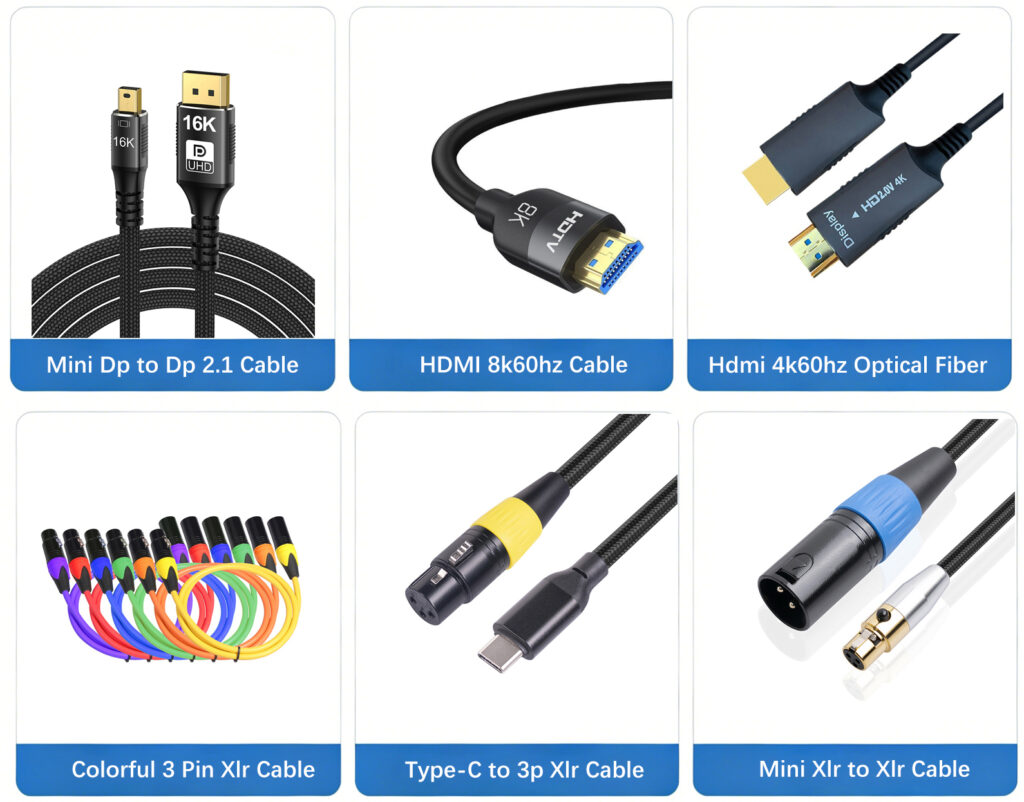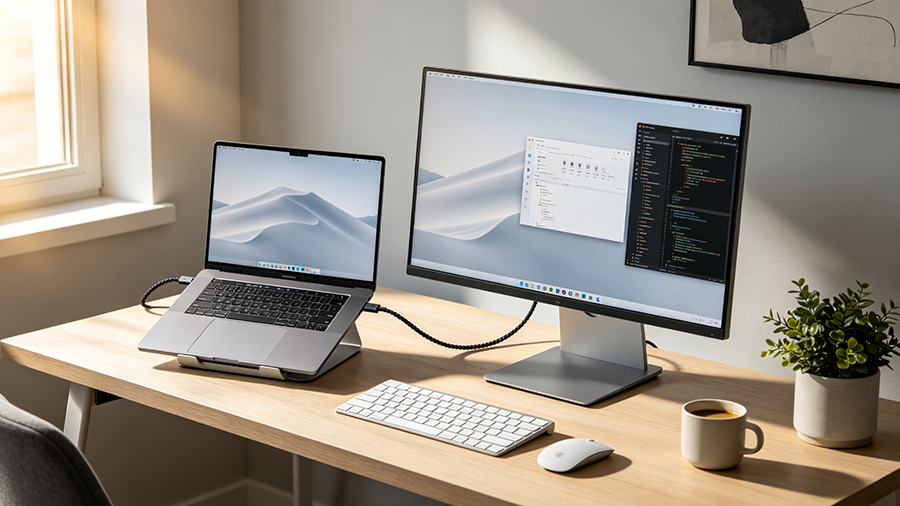
If you have ever stared at the back of a new monitor and wondered whether to plug in the USB-C cable or the кабель HDMI, you are not alone. The “USB-C vs HDMI” question is one of the most searched monitor topics of 2026 — and the honest answer is: it depends on your laptop, your screen and how you work. This guide breaks down bandwidth, 4K and 8K support, power delivery, daisy chaining and gaming features, so you can pick the right connection for your external monitor the first time.
USB-C vs HDMI at a Glance
Before we dig into the tech, here is the 30-second version of the USB-C vs HDMI comparison for your monitor:
| Question | USB-C (with DP Alt Mode / Thunderbolt) | HDMI |
|---|---|---|
| Лучшее для | Laptops, ultrabooks, single-cable desks, docking stations | TVs, consoles, projectors, desktops, legacy devices |
| Carries power? | Yes — USB-C power delivery, typically 65–100W, up to 240W | No — video and audio only |
| Carries data? | Yes — USB 3.x / USB4 up to 40–120 Gbps | No (HDMI Ethernet Channel aside) |
| Максимальная пропускная способность | 40 Gbps (Thunderbolt 4 / USB4) → 120 Gbps (Thunderbolt 5) | 18 → 48 → 96 Gbps (HDMI 2.0 / 2.1 / 2.2) |
| Universal compatibility | Only if the port supports video (DP Alt Mode) | Near-universal — works with almost every display |
| Daisy chain monitors | Yes, via DisplayPort Multi-Stream Transport (MST) | Нет |
What Is USB-C for Monitors? (DisplayPort Alt Mode Explained)
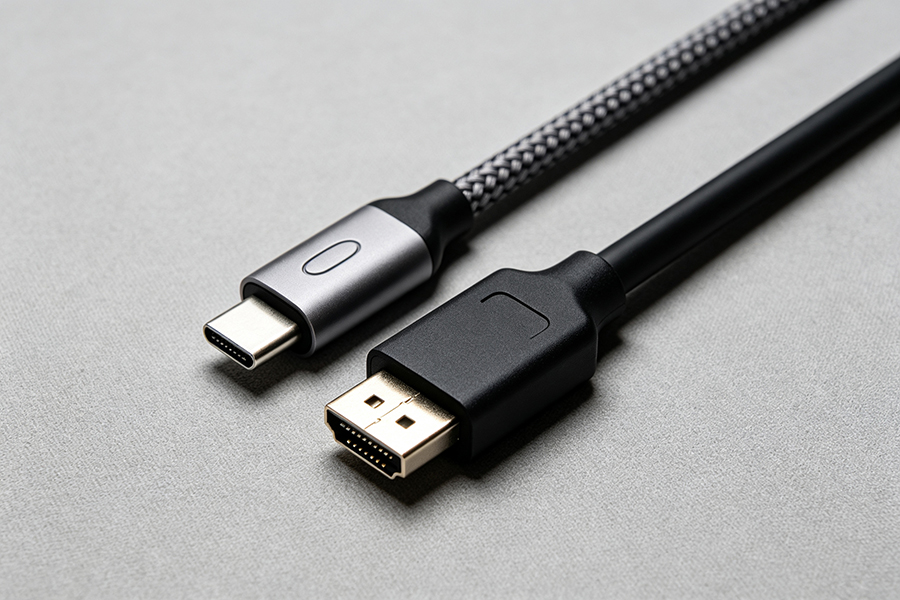
USB-C is the reversible connector you already use to charge your phone and laptop. But not every USB-C port is the same. For a USB-C monitor connection to work, the port (on your laptop и your monitor) must support one of three video-capable standards:
- Режим DisplayPort Alt — the most common. It routes a native DisplayPort video signal through the USB-C cable, so the picture quality is identical to a dedicated DisplayPort connection.
- Thunderbolt 3 / 4 — Intel’s standard, 40 Gbps, guaranteed minimums for video and data, found on Macs and premium Windows laptops.
- USB4 / USB4 2.0 / Thunderbolt 5 — the new generation, with 40 Gbps (USB4 / Thunderbolt 4), 80 Gbps (USB4 2.0) and up to 120 Gbps with Thunderbolt 5 Bandwidth Boost.
What Is HDMI?
HDMI (High-Definition Multimedia Interface) has been the world’s default display connection for two decades. It is on TVs, game consoles, projectors, streaming boxes, desktop GPUs and most monitors — which is why “monitor HDMI” just works with almost anything you own. It carries video and multi-channel audio over one cable, and it keeps getting faster:
- HDMI 2.0 — 18 Gbps, up to 4K @ 60Hz. Still fine for most office monitors.
- HDMI 2.1 — 48 Gbps, up to 8K @ 60Hz or 4K @ 120Hz, plus VRR, ALLM and eARC for gaming and home theater.
- HDMI 2.2 — the newest spec (announced January 2025, finalized mid-2025), doubling bandwidth to 96 Гбит/с with new “Ultra96” certified cables, enabling uncompressed 8K @ 60Hz 4:4:4, 4K @ 240Hz, 12K @ 120Hz and 16K @ 60Hz.
5 Reasons to Choose USB-C for Your Monitor
- One cable for everything (single cable setup). Video + USB data + laptop charging through a single USB-C cable means a genuinely clean desk. This is the #1 reason laptop users pick a USB-C monitor over HDMI.
- USB-C power delivery. Most USB-C monitors deliver 65–100W to your laptop, and USB Power Delivery 3.1 (EPR) supports up to 240W — enough for bigger machines. HDMI cannot charge anything.
- Built-in USB hub. The monitor becomes a hub for your mouse, keyboard and SSD, with the laptop connected by that one cable. HDMI needs a separate docking station to do this.
- Daisy chain monitors. With DisplayPort Multi-Stream Transport, one USB-C port can drive two 4K monitors in a chain — a big win for multi-monitor productivity.
- Future-proof Thunderbolt and USB4. Thunderbolt 4 (40 Gbps), USB4 2.0 (80 Gbps) and Thunderbolt 5 (120 Gbps) keep USB-C ahead of most single-cable bandwidth needs, including dual 5K/6K setups.
5 Reasons to Choose HDMI for Your Monitor
- Universal compatibility. HDMI ports are on virtually every TV, monitor, console, projector, set-top box and desktop GPU ever made. You will never need to check “does this port support video?”
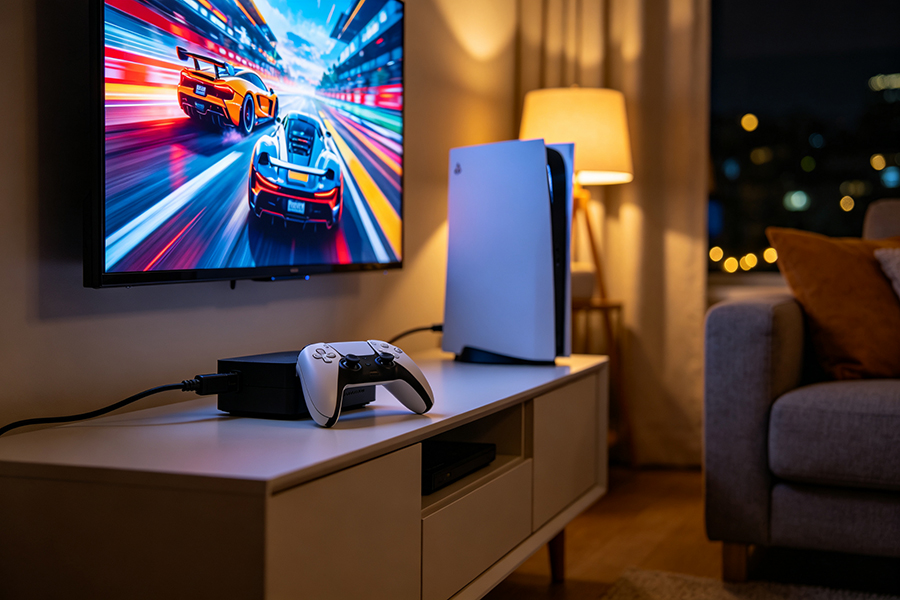
- The console and TV standard. PlayStation, Xbox, Apple TV and soundbars all expect HDMI. Features like VRR, ALLM and eARC make HDMI 2.1 the best connection for console gaming.
- Massive refresh-rate headroom. HDMI 2.1 hits 4K 120Hz and 8K 60Hz at 48 Gbps; the new HDMI 2.2 spec doubles that to 96 Gbps for 4K 240Hz and uncompressed 8K — ideal for high-refresh gaming monitors and future 8K displays.
- Long, cheap cables. Passive HDMI cables work reliably at longer runs (up to ~15m for 4K), and certified cables are inexpensive. USB-C video cables are typically short (1–2m) and pricier.
- No driver or Alt Mode surprises. HDMI is plug-and-play everywhere — no worrying about DisplayPort Alt Mode support, Thunderbolt certification or lane-sharing trade-offs.
USB-C vs HDMI: Full Side-by-Side Comparison
| Характеристика | USB-C (DP Alt Mode / Thunderbolt / USB4) | HDMI (2.0 / 2.1 / 2.2) |
|---|---|---|
| Разъем | Reversible, small, same shape on both ends | Single-direction (not reversible), larger 19-pin plug |
| Max bandwidth | 40 Gbps (TB4/USB4) · 80 Gbps (USB4 2.0) · 120 Gbps (TB5) | 18 Gbps (2.0) · 48 Gbps (2.1) · 96 Gbps (2.2) |
| 4K @ 60 Гц | Да | Yes (HDMI 2.0+) |
| 4K @ 120Hz+ / 8K | Yes via DP 1.4/2.1 Alt Mode; TB5 for dual 6K/8K | Yes (HDMI 2.1: 8K@60, 4K@120; HDMI 2.2: 4K@240, 8K@60 4:4:4) |
| Power delivery | Yes — USB PD, 65–100W typical, up to 240W (PD 3.1) | No (5V control signal only) |
| USB data | Yes — up to 40/80/120 Gbps | No (HDMI Ethernet Channel in some cables) |
| Аудио | Yes (via DisplayPort audio) | Yes — incl. eARC for soundbars/AV receivers |
| Daisy chaining | Yes — DisplayPort MST, multiple monitors per port | Нет |
| Gaming features | G-Sync / FreeSync over DP; high refresh with DSC | VRR, ALLM, QMS; eARC; 4K 120Hz gaming standard on consoles |
| Compatibility risk | Port must support DP Alt Mode / Thunderbolt / USB4 | Works with virtually every display and device |
| Typical cable length | 1–2m passive (longer with active cables) | Up to ~15m passive for 4K; active for longer runs |
| Best scenarios | Laptop docking, single-cable desks, USB-C monitors, multi-monitor chains | TVs, consoles, projectors, gaming PCs, 8K displays |
USB-C or HDMI: Which Should You Use, by Scenario?
| Your setup | Best connection | Why |
|---|---|---|
| Laptop + external monitor, want a clean desk | USB-C (DP Alt Mode / Thunderbolt) | One cable for video, power and data — the single cable setup USB-C is famous for. |
| Gaming console (PS5 / Xbox) → TV | HDMI 2.1 | Consoles ship with HDMI; VRR and ALLM need HDMI 2.1. USB-C is not an option on most TVs. |
| High-refresh gaming PC (144Hz / 240Hz+) | DisplayPort, or HDMI 2.1/2.2 | Full bandwidth for high refresh rates; HDMI 2.2 reaches 4K 240Hz without compression. |
| 4K office monitor, laptop-only use | Either — USB-C if your laptop supports it | Both drive 4K @ 60Hz; USB-C adds charging and hub convenience. |
| Two or more monitors | USB-C with MST daisy chain | One cable per chain instead of one cable per screen; HDMI cannot chain. |
| 8K TV / future-proof display | HDMI 2.2 or Thunderbolt 5 | 96 Gbps (HDMI 2.2) and 120 Gbps (TB5) are the only interfaces ready for uncompressed 8K today. |
| Projector, AV receiver, older hardware | HDMI | HDMI is everywhere; USB-C video support is rare on these devices. |
Часто задаваемые вопросы
Is USB-C better than HDMI for a monitor?
For laptops, usually yes: a USB-C monitor connection carries video, data and power through one cable, and supports daisy chaining. For TVs, consoles and universal compatibility, HDMI is better. The “best” choice depends on what you are plugging in.
Can a USB-C port connect to an HDMI monitor?
Yes. If your laptop’s USB-C port supports DisplayPort Alt Mode or Thunderbolt, a USB-C to HDMI cable or adapter drives any HDMI monitor. Without video-capable Alt Mode, you need a powered USB-C video adapter instead.
Why won’t my laptop’s USB-C connect to my monitor
The most common cause: the USB-C port does not support DisplayPort Alt Mode — many ports are charge-only or data-only. Check the spec sheet or look for a DP / Thunderbolt icon, then use an HDMI or DisplayPort output instead.
Does HDMI charge a laptop?
No. HDMI does not support power delivery. It only sends a small 5V control signal. If you want one cable that charges, USB-C with USB Power Delivery is the only option.