Intro
Ever stared at your slim USB-C laptop, panicking because you need to plug in a charger, external monitor, and wired mouse all at once? You’ve probably seen USB-C adapters and docking stations pop up in your search for a fix—but which one do you actually need? We’re cutting through the jargon to help you avoid wasted cash.
Quick Side-by-Side Comparison
| Feature | USB-C Adapter | USB-C Docking Station |
|---|---|---|
| Number of ports | 2-5 total | 6-15+ total |
| Typical port options | USB-A, HDMI, SD card, 60-100W PD charging | USB-A/C, HDMI/DP, Ethernet, 3.5mm audio, SD/TF, 100-240W PD charging, sometimes GPU support |
| Display support | Max 1-2 x 4K@30/60Hz | Max 2-4 x 4K@60Hz, or 1 x 8K |
| Power source | Draws power from laptop, no extra adapter needed | Most require separate wall power for full performance |
| Primary use case | Occasional on-the-go use | Fixed desktop setup, heavy multi-device workflows |
| Price range | $10-$50 | $50-$300 |
| Portability | Pocket-sized, plugs directly into laptop | Larger desktop form factor, select models are travel-friendly |
What Is a USB-C Adapter?
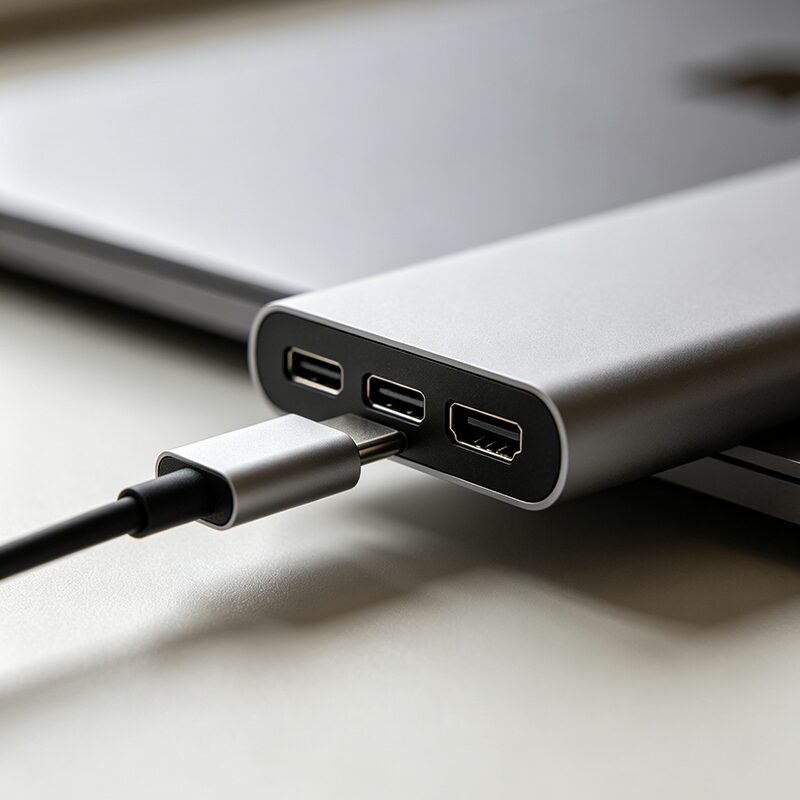
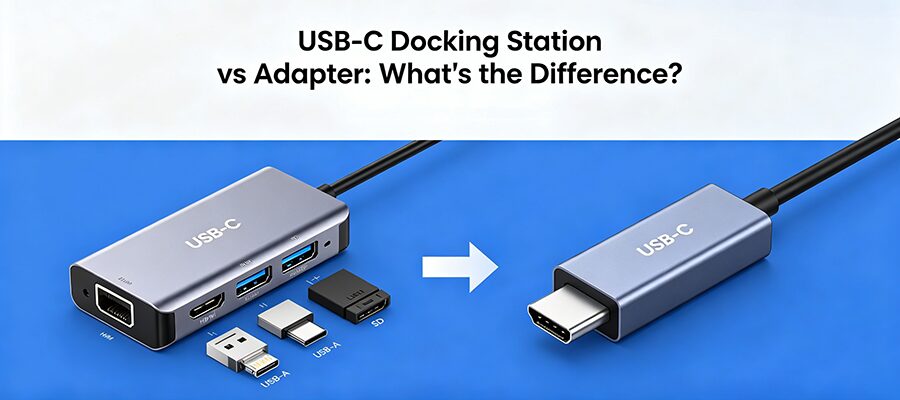
A USB-C adapter (also called a USB-C dongle) is a compact, plug-and-play accessory designed for quick, temporary port expansion. It connects directly to your laptop’s USB-C port without extra power cables.
Best for:
- Students, frequent travelers, or hybrid workers who only need extra ports on the go
- Casual use: plugging in a USB flash drive, external monitor, or SD card while working from a coffee shop
Limitations:
- Can run slow if you use multiple high-power devices at once
- Rarely supports Ethernet or more than 2 external displays
What Is a USB-C Docking Station?
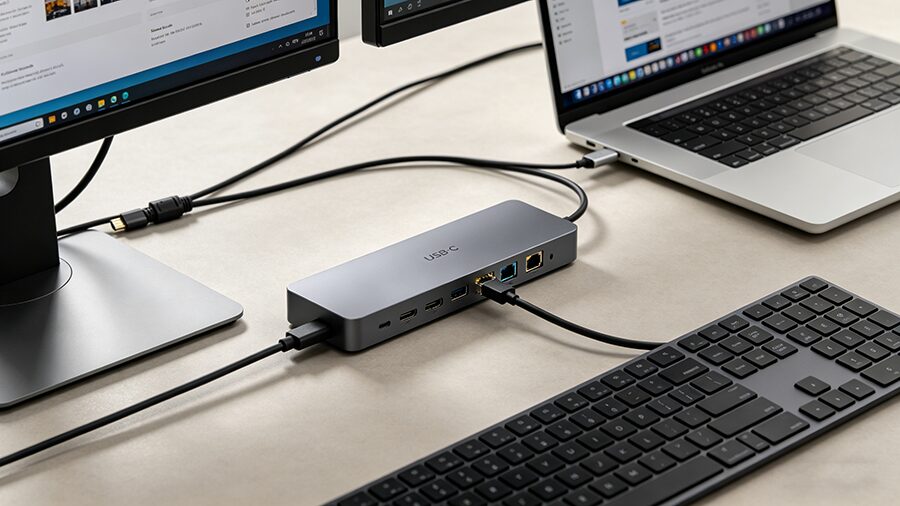
A USB-C docking station is a high-performance expansion hub built for fixed or semi-fixed work setups. Most come with a separate power supply to support full-speed operation for all connected devices.
Best for:
- Remote workers, content creators, or gamers who use 3+ peripherals (keyboard, mouse, external SSD, speakers, etc.)
- Users who need multi-display setups, wired Ethernet for low-latency work, or high-wattage charging for gaming laptops
Limitations:
- Bulkier and less portable than adapters
- Higher upfront cost for premium models
3-Second Rule to Pick the Right One
- ✅ Choose an adapter if: You travel often, only need 1-3 extra ports occasionally, and have a tight budget
- ✅ Choose a docking station if: You work from a fixed desk, need multiple monitors or Ethernet, and use 5+ peripherals regularly
- ✅ Get both if: You split time between travel and a home office: pair a $20 travel adapter with a $100 desktop docking station for maximum flexibility
FAQ
Q: Can I use a docking station as an adapter?
A: Yes, but most are too bulky to carry around for daily on-the-go use.
Q: Do both work with macOS and Windows?
A: 90% of models are plug-and-play for both systems, though high-end docking stations may require driver updates for full multi-display functionality.
Q: Will either damage my laptop?
A: No, as long as you buy from a reputable brand that meets USB-IF certification standards.