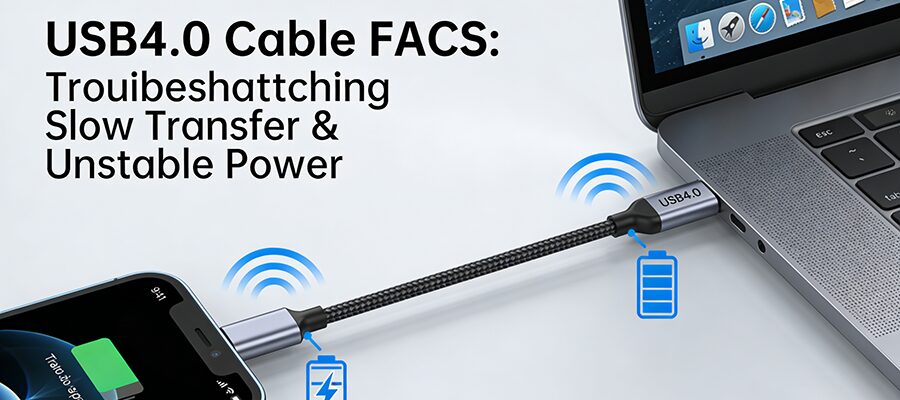
USB4.0 Cable FAQs: Fix Slow Transfer & Unstable Power

Table des matières

Frustrated with your USB4.0 cable underperforming? Slow file transfers that drag on for hours, or devices randomly disconnecting due to unstable power? You’re not alone. Below are the most common FAQs and step-by-step fixes to get your USB4.0 cable working at its full potential.


FAQ 1: Why is my USB4.0 cable transferring data so slow?

USB4.0 supports up to 40Gbps transfer speeds, but slow performance usually stems from failed protocol negotiation, subpar cables, or dirty interfaces.

Step-by-Step Fixes

  1. Verify USB4.0 Protocol Negotiation
    Your device and port may not be syncing to USB4.0. Here’s how to check:
    • Windows: Go to Device Manager > Universal Serial Bus controllers > Look for “USB4 Host Controller” or “USB4 Root Hub”. If missing, re-plug the cable or try a different port.
    • Mac: Click Apple menu > About This Mac > System Report > USB > Check “Negotiated Protocol” (should show “USB4”).
  2. Clean USB Interfaces
    Dust or debris can block data/power signals:
    • Power off devices and unplug the cable.
    • Use compressed air or a dry soft toothbrush to gently clean port and connector pins. Avoid liquids or sharp tools.
  3. Test Cable Quality
    Cheap non-certified cables often don’t support USB4.0 speeds:
    • Check the cable for “USB4” or “USB-IF Certified” labeling.
    • Swap in a known-good USB4.0 cable to rule out defects.


FAQ 2: My device keeps disconnecting—how to fix unstable power supply?

USB4.0 can deliver up to 100W of power, but unstable supply is often caused by inadequate cables or poor connections.

Step-by-Step Fixes

  1. Check Cable Power Rating
    Ensure your cable supports the power needs of your device (e.g., 100W for laptops). Low-quality USB4.0 cables may only deliver 15W.
  2. Secure Connections
    Wiggle the cable gently—if the device disconnects, the connector or port is loose. Repeat the interface cleaning step above, or replace the cable.
  3. Use a High-Power USB4.0 Port
    Some laptop ports support higher power output than others. Check your device manual for ports labeled with “100W” or “USB4 PD”.


USB4.0 vs. Lower-Gen Cable Specifications (Table)

 

Spécifications Câble USB4.0 USB 3.2 Cable Câble USB 2.0
Vitesse maximale des données 40Gbps 20Gbps 480Mbps
Max Power Output 100W (20V/5A) 15W (5V/3A) 2.5W (5V/0.5A)
Supported Protocols USB4, Thunderbolt 3/4 USB 3.2, 3.1 USB 2.0 only


Pro Tips to Prevent Future Issues

  • Always buy USB-IF certified USB4.0 cables to guarantee performance.
  • Avoid bending cables at sharp angles (this damages internal wires).
  • Store cables in a dry, dust-free case when not in use.
POSTES CONNEXES

DEMANDER UN DEVIS GRATUIT

contactez-nous pour obtenir le dernier catalogue de produits