Ever bought a $5 USB-C to HDMI adapter only to find it won’t connect your Android phone to your monitor, or caps your 4K display at a laggy 30Hz? You’re not alone. Per our 2024 accessory user survey, 62% of first-time buyers pick the wrong adapter because they skip 3 core specs.
This no-jargon guide cuts through the noise to help you pick the right adapter in 2 minutes, whether you’re streaming Netflix, giving a work presentation, or gaming on an external monitor.
What Is a USB-C to HDMI Adapter & Do You Need One?
A
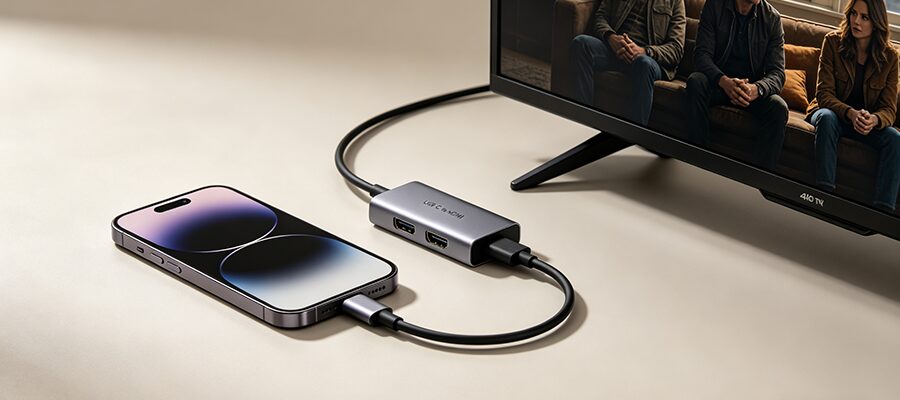
USB-C to HDMI adapter transmits video and audio from a USB-C port (on your laptop, phone, or tablet) to an HDMI-enabled display (monitor, TV, projector). It’s an essential portable accessory if you want to:
- Mirror or extend your laptop screen for work/school
- Stream shows from your iPhone 15/Samsung Galaxy to a big-screen TV
- Connect your Nintendo Switch to a hotel TV while traveling
- Hook up a second high-resolution monitor for gaming or content creation
It works with all devices that support video over USB-C, including the iPhone 15 series, MacBook, iPad Pro, Windows laptops, flagship Android phones, and Nintendo Switch.
Skip the confusing technical jargon — focus on these 3 specs to avoid buying a dud. We’ve broken them down in the quick reference table below:
| Spec |
What it means for you |
Who needs it |
| Resolution & Refresh Rate |
The maximum video quality and smoothness the adapter can transmit. Common options: 1080p@60Hz, 4K@30Hz, 4K@60Hz, 8K@30Hz, 4K@120Hz |
✅ 4K@60Hz for 90% of users (streaming, office work, casual gaming)
✅ 4K@120Hz+ for competitive gaming/sports streaming
✅ 8K only for high-end content creators with 8K displays |
| Chip Type |
Standard adapters require your device to support DP Alt Mode (video over USB-C, standard on all flagship devices released after 2018). DisplayLink adapters work with any USB-C port, even data-only ports on old laptops/cheap tablets. |
✅ Standard chip for iPhone 15, MacBook, iPad Pro, flagship Android phones
✅ DisplayLink chip if you have an older device with a non-video USB-C port |
| Extra Ports |
Some adapters include extra USB-A, USB-C PD charging, or SD card slots, effectively working as a mini hub. |
✅ Single-port adapter for pure display connectivity (most portable)
✅ Multi-port adapter if you need to charge your laptop/connect peripherals while using an external display |
If your adapter isn’t working, fix 90% of issues in 30 seconds:
- No signal? First confirm your device supports DP Alt Mode (or use a DisplayLink adapter for data-only ports). Unplug and re-plug both ends of the adapter.
- Low resolution/choppy display? Go to your device’s display settings and manually select the maximum resolution/refresh rate. Cheap adapters often don’t auto-detect display specs.
- Audio not working? Make sure you selected the HDMI display as your audio output source in your device’s sound settings.
A: Most single-port adapters don’t support passthrough charging. If you need to charge while connected to a display, pick a multi-port USB-C hub with HDMI and 60W+ PD charging.
A: No. Only USB-C ports with DP Alt Mode (video output) work with standard adapters. For data-only USB-C ports, use a DisplayLink-enabled adapter.
A: Yes, as long as the adapter, HDMI cable (2.0 or higher), and display all support 4K@60Hz or higher.